Wireless Mice for Chromebook and Mac: Setup Checks
By TechItSpot · Research-based buying guide. Updated 2026-10-16. How we compare products
Quick decision
Both model families document ChromeOS and macOS support; M650 customization has a narrower software platform list.
Sources checked . This is a comparison of documented features. We have not tested these products.
| Option | Choose it when | Limits to check | Evidence |
|---|---|---|---|
| Logitech M185 Compact Ambidextrous 2.4 GHz Wireless Mouse - Swift Grey | Ambidextrous mouse with 2.4 GHz USB-A Nano Receiver, Optical Tracking, 12-Months Battery Life, PC, Mac, Laptop compatible | Moving a supplied receiver between two computers. The collected seller listing for ASIN B004YAVF8I identifies M185 910-002225, Swift Grey. Logitech lists macOS and ChromeOS compatibility. Its support table documents multiple hardware revisions and different receiver families. |
The ASIN does not establish the underside hardware revision. Identify that revision before buying a replacement receiver; do not assume every M185 is Unifying-compatible. | Collected M185 seller listing: identity and part numberLogitech M185 product pageLogitech M185 revision specificationsLogitech business catalog: M185 Swift Grey part crosscheck |
| Logitech Signature M650 Wireless Mouse Small to Medium Sized Hands - Black | A Bluetooth connection with optional Mac button customization. The collected seller listing for ASIN B09KX66ZCD identifies M650 910-006268. Logitech documents Bluetooth Low Energy and Logi Bolt, ChromeOS support, and Options+ software on Windows and macOS. |
The manufacturer family page does not map ASIN B09KX66ZCD or part 910-006268 to this exact size/color variant. Logitech lists Options+ for Windows and macOS; these sources do not establish ChromeOS customization support. Please confirm the standard right-handed M650 variant and connection requirements. | Collected standard M650 seller listingLogitech Signature M650 product pageLogitech M650 operating-system and receiver specifications |
A wireless mouse compatible with Chromebook and Mac should suit the way you move between those computers. A shared operating-system list is only the starting point: check the connector, receiver family, and software behind the buttons you plan to use. Logitech M185 offers a straightforward receiver-based option. Signature M650 adds Bluetooth and configurable shortcuts on supported Macs. This affiliate guide compares published documentation, without hands-on testing. It focuses on keeping everyday controls predictable across ChromeOS and macOS, rather than assuming that every advertised feature works identically on both.
We may earn a commission at no extra cost to you.
The picks

Logitech M185 Compact Ambidextrous 2.4 GHz Wireless Mouse - Swift Grey | Ambidextrous mouse with 2.4 GHz USB-A Nano Receiver, Optical Tracking, 12-Months Battery Life, PC, Mac, Laptop compatible
The Swift Grey M185 suits basic cross-platform use when both computers can accept its supplied receiver. Plan for a USB-A adapter if needed.
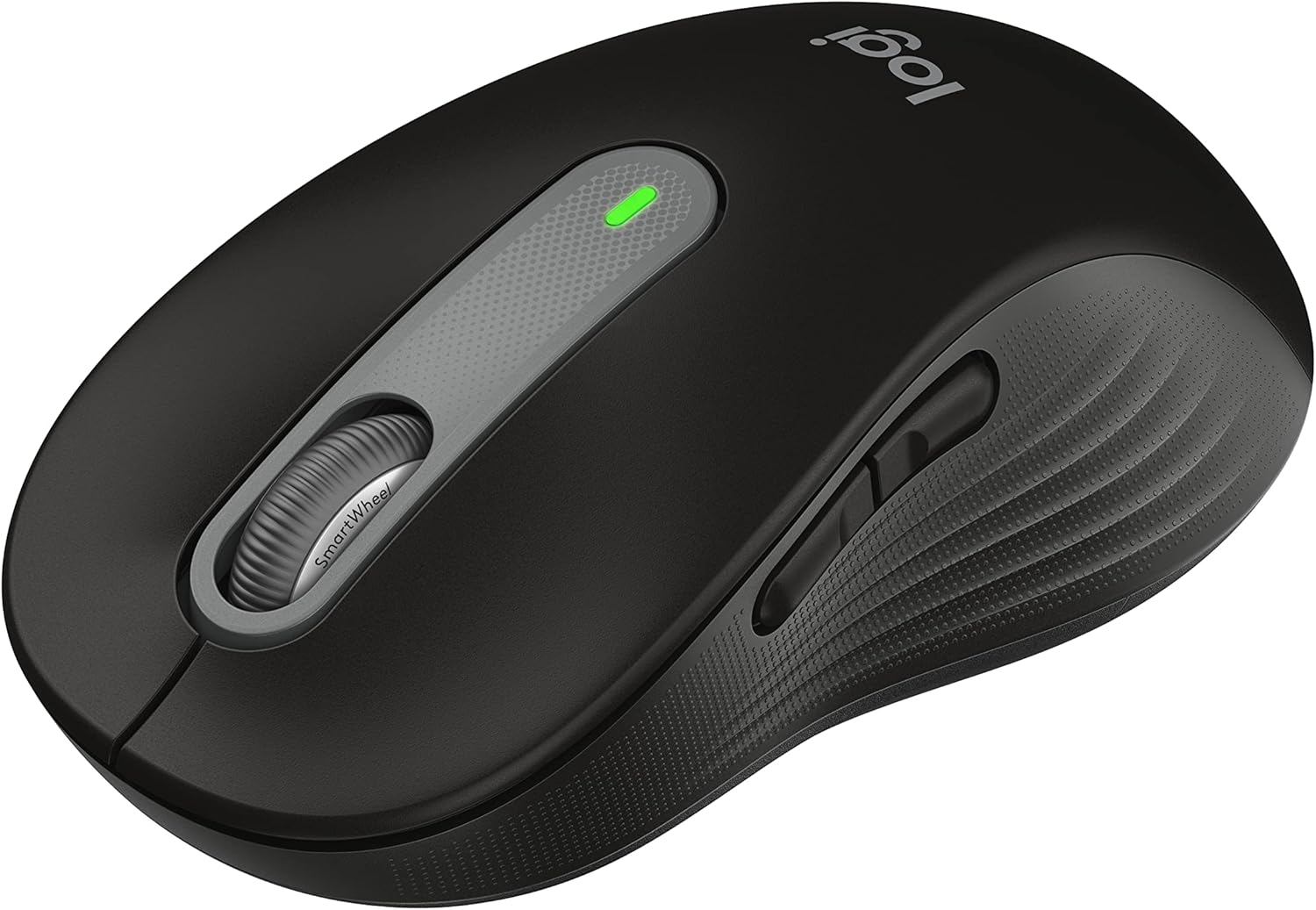
Logitech Signature M650 Wireless Mouse Small to Medium Sized Hands - Black
The standard M650 offers a second connection method and Mac customization. Choose it for that flexibility while evaluating ChromeOS functions separately.
Why these models
Two existing catalog models with documented cross-platform support. Display order reflects a simple shared workflow first, not measured performance. The M650 pick is the standard size, not M650 L.
| Check | M185 | Standard M650 |
|---|---|---|
| Connection | USB-A receiver | Bluetooth or Logi Bolt |
| ChromeOS versus Mac | Basic shared workflow | Check shortcuts on each OS |
| Replacement receiver | Match underside revision | Match Logi Bolt family |
Check ports before choosing a wireless mouse
Look at both computers in their usual desk setup, including any dock that stays attached. A receiver you can move easily at home may be inconvenient if the other computer lives in a bag. Bluetooth can avoid occupying a USB port, but confirm that the chosen computer permits pairing before making it your only connection plan.
- List the available USB-A ports on each computer; include adapters you will actually carry.
- For M185, keep the supplied receiver with the mouse and check its storage before travel.
- For M650, choose Bluetooth or its supplied Bolt receiver for each setup, then follow Logitech's pairing instructions.
Sources: Logitech M185 product page · Logitech M650 setup and button customization
Test the same task on ChromeOS and macOS
Hardware support and customization software answer different questions. Logitech's M650 specifications list macOS 10.10 or later for its receiver connection and macOS 10.15 or later for Bluetooth; those historical hardware thresholds are not a promise that today's Options+ app supports an older Mac. Check the current app requirements if remapping is part of your purchase decision.
- Confirm the Mac's installed OS version and the current software requirements.
- After delivery, check pointer movement, left and right click, middle click, and scrolling on both computers.
- Try each required side-button action in your actual browser or application; verify any Mac remapping separately.
Sources: Logitech M650 operating-system and receiver specifications · Logitech M650 setup and button customization
Keep the receiver family and handoff plan explicit
Label a receiver by the mouse it belongs to instead of treating every small USB dongle as interchangeable. The M185 revision table is especially useful when replacing a lost receiver. For a shared mouse, make your handoff routine concrete: decide where the dongle goes, which connection the second computer uses, and how you return to the first. Check those steps during the return period before committing to a daily routine.
- Record the mouse model and underside revision before disposing of packaging.
- Check the receiver family against the exact model before buying a spare.
- Run one complete Chromebook-to-Mac-to-Chromebook handoff with the connection method you intend to keep.
Sources: Logitech M185 revision specifications · Logitech M650 operating-system and receiver specifications
What to look for
Choose M185 when you want basic pointing and scrolling and are happy to move its USB-A receiver between computers. Consider the standard, small-to-medium M650 when Bluetooth avoids an adapter on your Mac, or when Mac-specific button assignments are useful. Before ordering, write down one task you need on both systems and one optional shortcut you would only use on the Mac. This separates a connection requirement from a software preference. If instant switching between two computers is essential, verify that capability separately; Bluetooth plus a receiver does not by itself establish an Easy-Switch workflow.
Related buying guides
Our guides use published specifications and Amazon listing information, with AI assistance in research and drafting. We do not conduct hands-on testing. Amazon customer ratings are not our own scores. Prices and availability change frequently — always confirm on Amazon before buying.